> ## Documentation Index
> Fetch the complete documentation index at: https://docs.gc.ai/llms.txt
> Use this file to discover all available pages before exploring further.
# Introduction to Files
> Learn about GC AI Files and how they can help your team
## Overview
Files are a powerful feature in GC AI that enables you to create permanent collections of documents accessible across all your chats. They serve as your team's document brain, allowing you to:
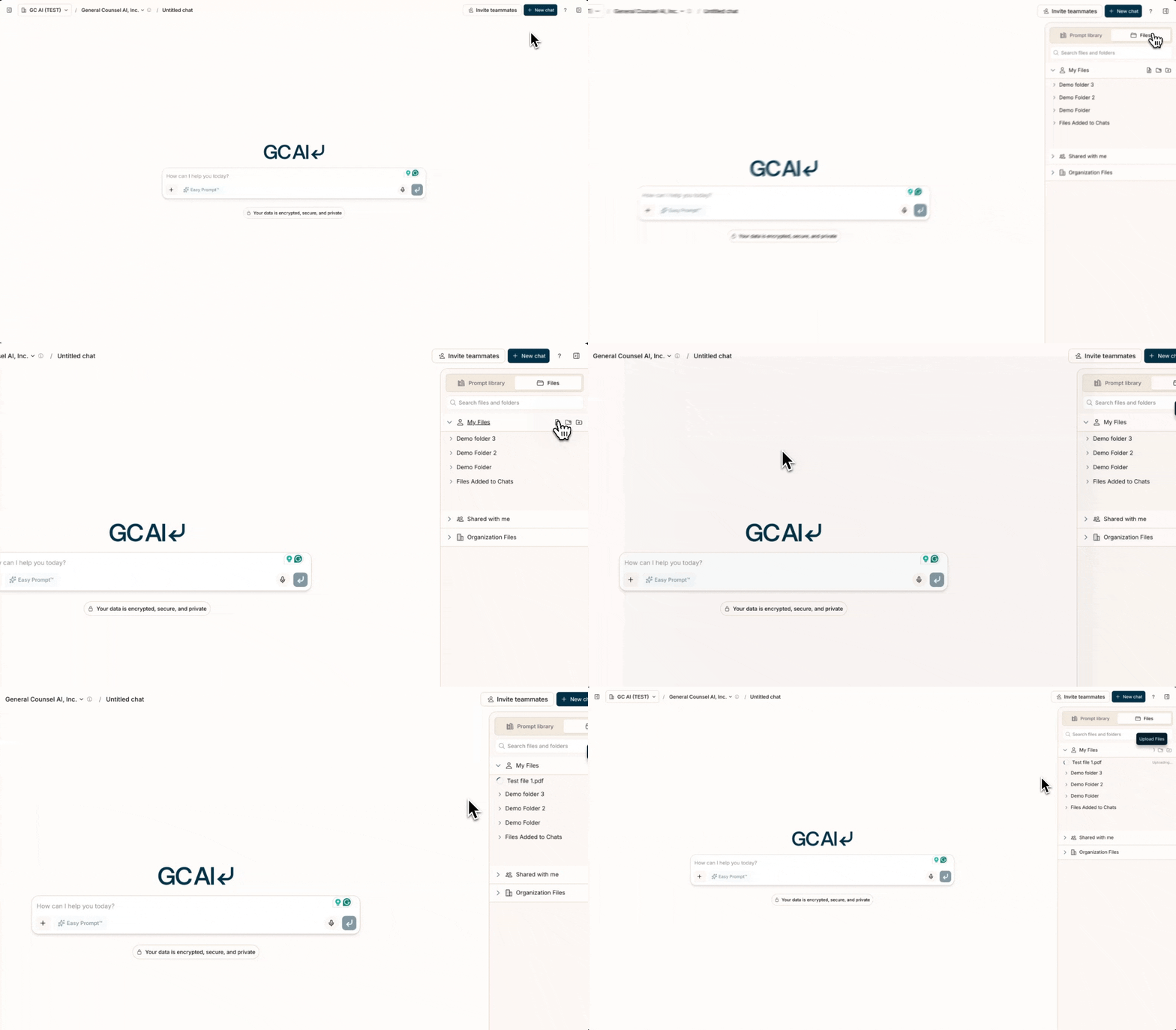 * Upload and organize files and folders
* Share documents with your team
* Work with large document sets using smart, on-demand document access
* Get cited responses with hover previews and in-document highlighting
## Smart Document Access
When you attach files from Files to a chat, GC AI doesn't load all document content into memory at once. Instead, it uses specialized tools to access your documents on demand:
* **Read** specific sections of a document as needed
* **Search** across documents for relevant passages using keyword matching
* **Query** document content using semantic search to find conceptually related information
This approach lets you work with significantly more documents than would fit in a single context window. The AI intelligently accesses only the portions it needs for each response.
## Getting Started
1. Open the right sidebar
2. Click "My Files" or "Organization Files"
3. Click "Create Folder"
4. Name your folder and set sharing permissions
5. Upload files: you can drag and drop files, paste from clipboard, or use the `+` menu (tooltip: **Add files, skills, or sources**) and select **Add from computer**
6. Drag the folder from the sidebar into any chat, or use the `+` menu to select **Add from Files** (this opens the sidebar to **Files** and focuses search so you can type immediately)
7. Start asking GC AI questions about your documents
## Using Documents in Chat
Once documents are attached to a chat, you'll see file badges showing which documents are available. The [context usage indicator](/docs/chat/context-window) shows how much context is being used. You can:
* Ask questions and receive responses with [citations](/docs/files/citations) linking to your source documents
* [Export](/docs/chat/how-to-download) your analysis as PDF, DOCX, or Markdown
* [Branch](/docs/chat/interface-overview) the conversation to explore different analysis paths
## 🔗 Cloud Storage Integrations
You can import files directly from cloud storage providers into Files.
* **[Google Drive](/docs/files/google-drive)** - Browse and select files from your Google Drive using the Google Picker. Supports PDF, DOCX, and Google Docs. Files are imported as point-in-time snapshots with no continuous sync.
* **SharePoint, OneDrive, Box, and Dropbox** - Connect these apps in [Agent Connectors](/guides/organizations/agent-connectors) to search and pull files in chat, or add them as a source in [Contract Intelligence](/guides/contract-intelligence/getting-started-with-contract-intelligence). Continuous folder sync is for Contract Intelligence Vaults, not the one-time Files picker.
* **Monday.com** - Add a board as a source in [Contract Intelligence](/guides/contract-intelligence/getting-started-with-contract-intelligence) to bring in the files attached to its items. Monday.com is in beta, and it is a Vault source only: the Files picker does not read Monday.com.
* **ServiceNow** - Add a table as a source in [Contract Intelligence](/guides/contract-intelligence/getting-started-with-contract-intelligence) to bring in the files attached to its records, or connect it in [Agent Connectors](/guides/organizations/agent-connectors) to read records and attachments in chat. ServiceNow is in beta, and the Files picker does not read it.
## Legacy File Migration
Previously uploaded files in chats will remain accessible in those conversations. For better organization and future access, we recommend re-uploading important files into Files.
This documentation is built and hosted on [Mintlify](https://mintlify.com), a developer documentation platform.
* Upload and organize files and folders
* Share documents with your team
* Work with large document sets using smart, on-demand document access
* Get cited responses with hover previews and in-document highlighting
## Smart Document Access
When you attach files from Files to a chat, GC AI doesn't load all document content into memory at once. Instead, it uses specialized tools to access your documents on demand:
* **Read** specific sections of a document as needed
* **Search** across documents for relevant passages using keyword matching
* **Query** document content using semantic search to find conceptually related information
This approach lets you work with significantly more documents than would fit in a single context window. The AI intelligently accesses only the portions it needs for each response.
## Getting Started
1. Open the right sidebar
2. Click "My Files" or "Organization Files"
3. Click "Create Folder"
4. Name your folder and set sharing permissions
5. Upload files: you can drag and drop files, paste from clipboard, or use the `+` menu (tooltip: **Add files, skills, or sources**) and select **Add from computer**
6. Drag the folder from the sidebar into any chat, or use the `+` menu to select **Add from Files** (this opens the sidebar to **Files** and focuses search so you can type immediately)
7. Start asking GC AI questions about your documents
## Using Documents in Chat
Once documents are attached to a chat, you'll see file badges showing which documents are available. The [context usage indicator](/docs/chat/context-window) shows how much context is being used. You can:
* Ask questions and receive responses with [citations](/docs/files/citations) linking to your source documents
* [Export](/docs/chat/how-to-download) your analysis as PDF, DOCX, or Markdown
* [Branch](/docs/chat/interface-overview) the conversation to explore different analysis paths
## 🔗 Cloud Storage Integrations
You can import files directly from cloud storage providers into Files.
* **[Google Drive](/docs/files/google-drive)** - Browse and select files from your Google Drive using the Google Picker. Supports PDF, DOCX, and Google Docs. Files are imported as point-in-time snapshots with no continuous sync.
* **SharePoint, OneDrive, Box, and Dropbox** - Connect these apps in [Agent Connectors](/guides/organizations/agent-connectors) to search and pull files in chat, or add them as a source in [Contract Intelligence](/guides/contract-intelligence/getting-started-with-contract-intelligence). Continuous folder sync is for Contract Intelligence Vaults, not the one-time Files picker.
* **Monday.com** - Add a board as a source in [Contract Intelligence](/guides/contract-intelligence/getting-started-with-contract-intelligence) to bring in the files attached to its items. Monday.com is in beta, and it is a Vault source only: the Files picker does not read Monday.com.
* **ServiceNow** - Add a table as a source in [Contract Intelligence](/guides/contract-intelligence/getting-started-with-contract-intelligence) to bring in the files attached to its records, or connect it in [Agent Connectors](/guides/organizations/agent-connectors) to read records and attachments in chat. ServiceNow is in beta, and the Files picker does not read it.
## Legacy File Migration
Previously uploaded files in chats will remain accessible in those conversations. For better organization and future access, we recommend re-uploading important files into Files.
This documentation is built and hosted on [Mintlify](https://mintlify.com), a developer documentation platform.