> ## Documentation Index
> Fetch the complete documentation index at: https://docs.gc.ai/llms.txt
> Use this file to discover all available pages before exploring further.
# Company profiles
> Use company profiles in chats and projects
Company profiles give GC AI context about a business. A profile can include its industry, jurisdictions, risk tolerance, preferred clauses, and legal name.
You can create several profiles and share each profile with specific organization members. A profile is private until you share it.
## Company profiles in chat
The company profile picker controls the current chat. Selecting a profile does not change your default.
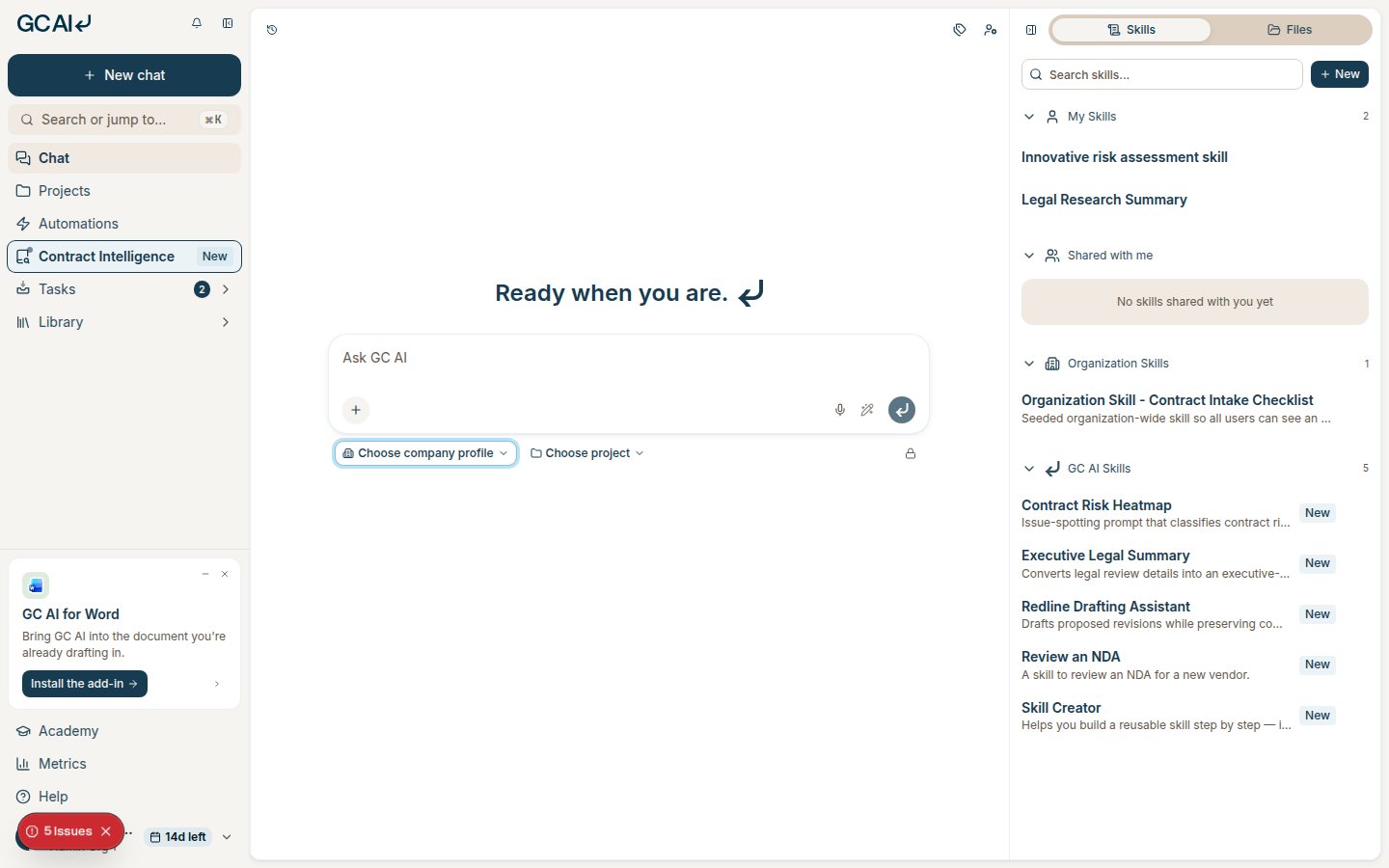 GC AI can apply the selected company's legal name, jurisdictions, regulations, and risk preferences.
Select **No company profile** to start the chat without company context.
## Personal and project defaults
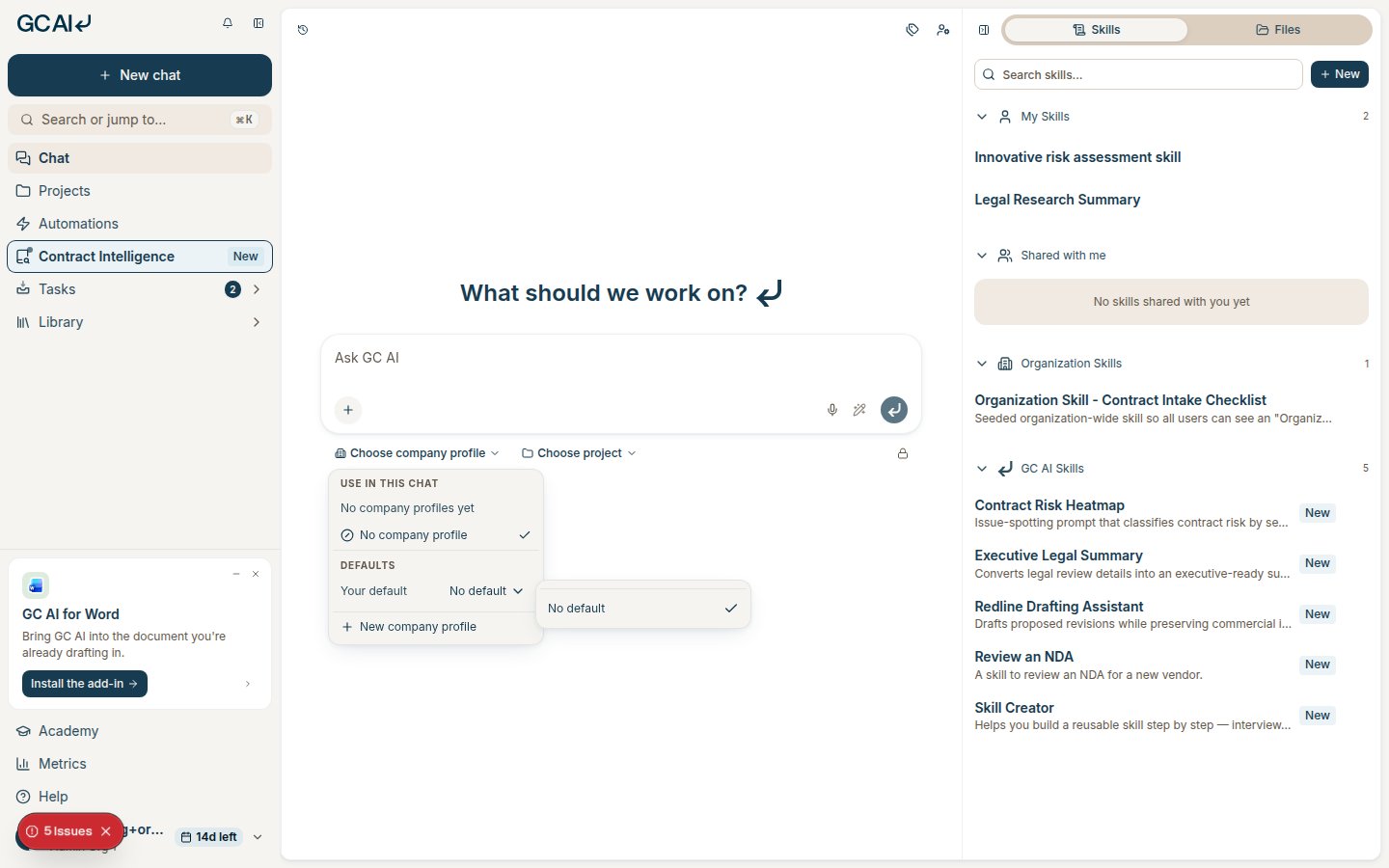
The picker has two default settings:
* **Your default** applies to your new chats when a project does not have its own default.
* **Project default** applies to new chats in that project. It takes priority over your personal default.
Defaults do not change when you select another profile for one chat. You must set or clear each default in the **Defaults** section.
GC AI can apply the selected company's legal name, jurisdictions, regulations, and risk preferences.
Select **No company profile** to start the chat without company context.
## Personal and project defaults
The picker has two default settings:
* **Your default** applies to your new chats when a project does not have its own default.
* **Project default** applies to new chats in that project. It takes priority over your personal default.
Defaults do not change when you select another profile for one chat. You must set or clear each default in the **Defaults** section.
 A project member can use the project default in that project's chats. This access does not let the member view or edit the profile elsewhere.
For setup steps, see [Create and manage a company profile](/guides/organizations/creating-a-profile).
This documentation is built and hosted on [Mintlify](https://mintlify.com), a developer documentation platform.
A project member can use the project default in that project's chats. This access does not let the member view or edit the profile elsewhere.
For setup steps, see [Create and manage a company profile](/guides/organizations/creating-a-profile).
This documentation is built and hosted on [Mintlify](https://mintlify.com), a developer documentation platform.