> ## Documentation Index
> Fetch the complete documentation index at: https://docs.gc.ai/llms.txt
> Use this file to discover all available pages before exploring further.
# Create and manage a company profile
> Create a company profile, select it for a chat, and set personal or project defaults.
Company profiles give GC AI context about your business. A profile can include your industry, jurisdictions, risk tolerance, and contract preferences.
You can create several profiles and share each profile with members of your organization.
 ## Create a company profile
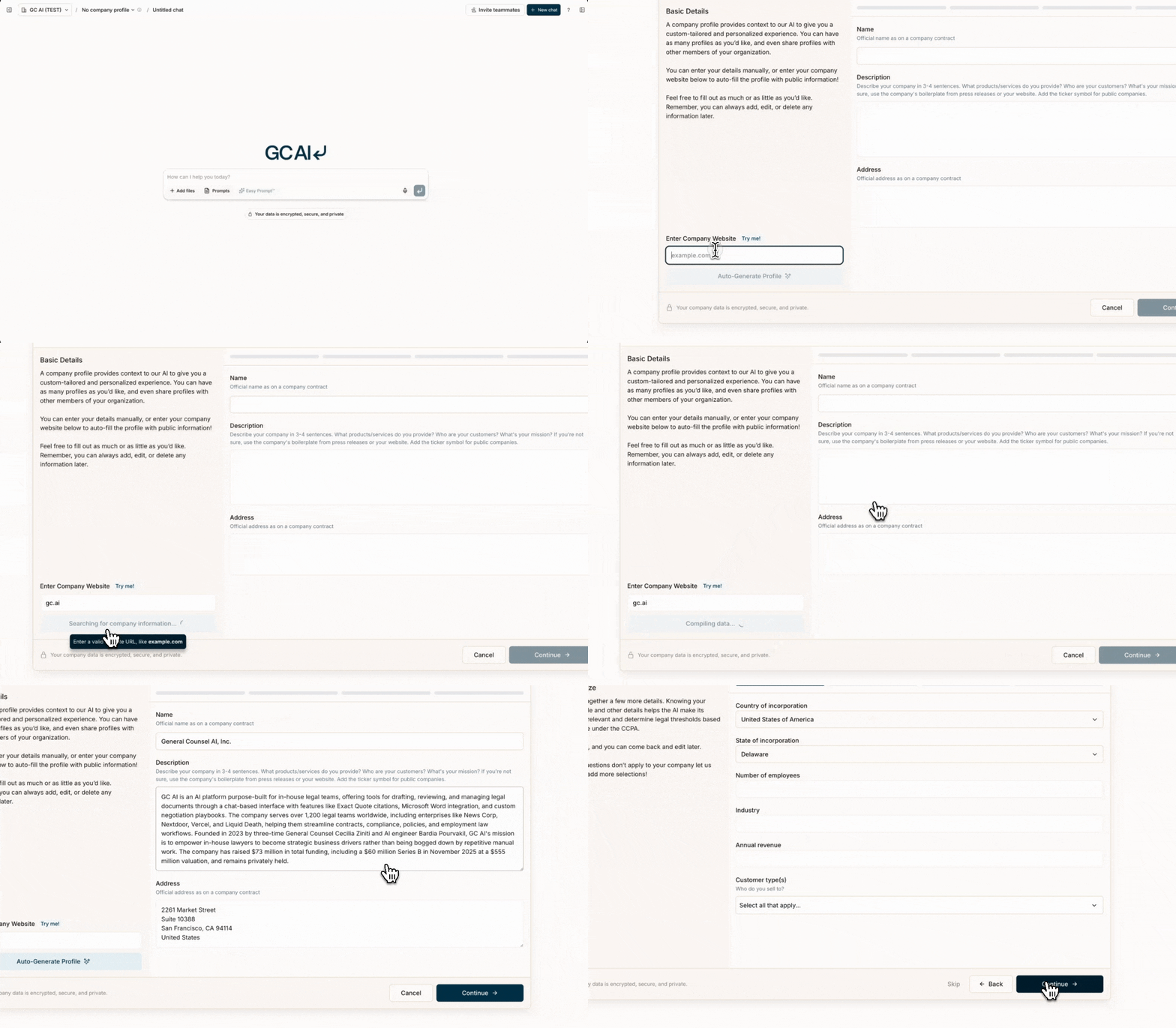
1. Open the company profile picker below the chat composer.
2. Select **New company profile**.
3. Enter the company details, or enter its website to generate a draft.
4. Review each generated field before you save the profile.
5. Select **Save**.
Include the details that affect your legal work:
* The company's legal name, address, industry, and jurisdictions
* Its business model, customers, products, and services
* Its risk tolerance and compliance requirements
* Its preferred clauses, contract positions, and legal language
* The teams or people involved in legal decisions
## Use a company profile in chat
Select a company profile below the chat composer. Your selection applies to that chat and does not change your default.
## Create a company profile
1. Open the company profile picker below the chat composer.
2. Select **New company profile**.
3. Enter the company details, or enter its website to generate a draft.
4. Review each generated field before you save the profile.
5. Select **Save**.
Include the details that affect your legal work:
* The company's legal name, address, industry, and jurisdictions
* Its business model, customers, products, and services
* Its risk tolerance and compliance requirements
* Its preferred clauses, contract positions, and legal language
* The teams or people involved in legal decisions
## Use a company profile in chat
Select a company profile below the chat composer. Your selection applies to that chat and does not change your default.
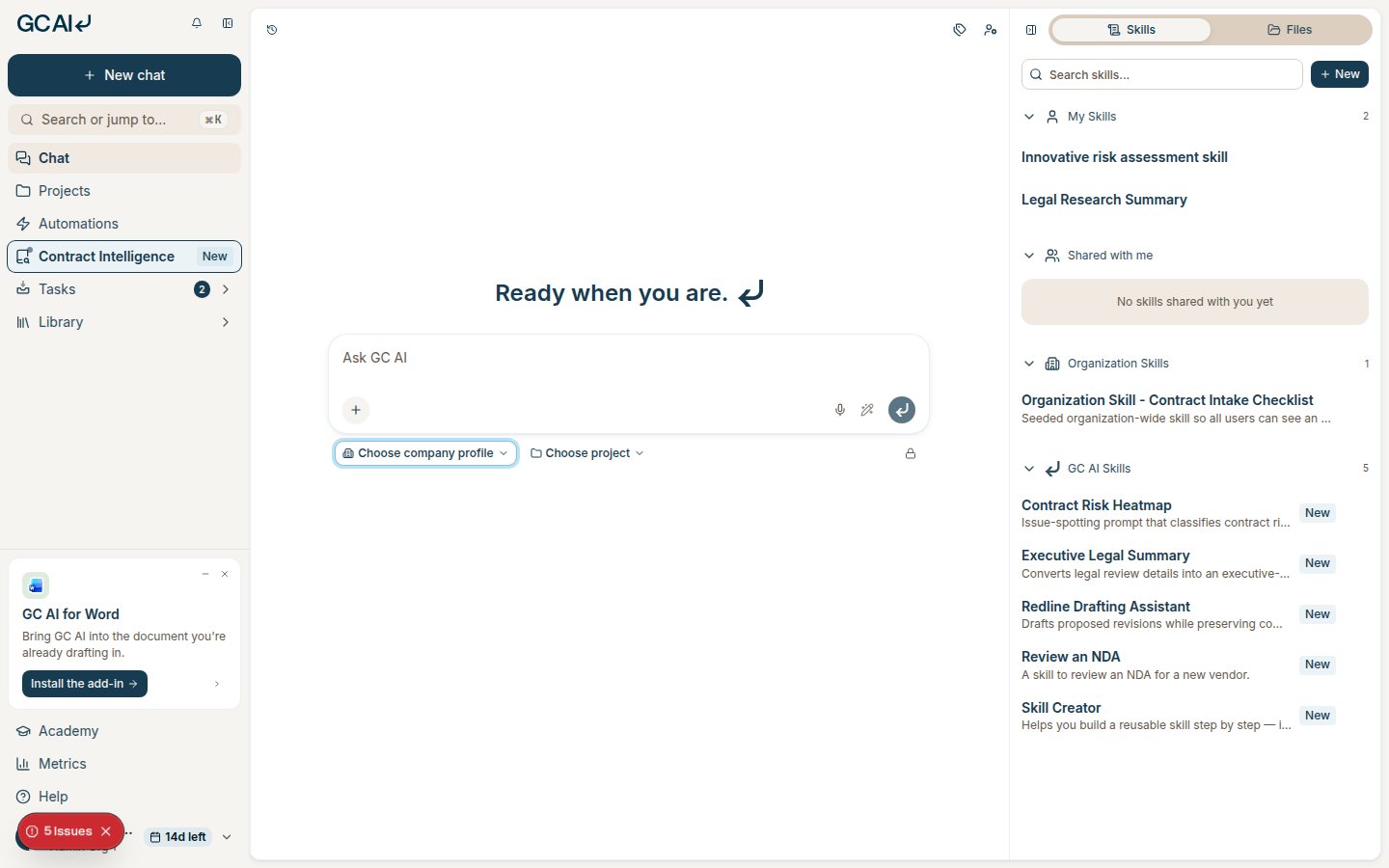 GC AI can apply the company's legal name, jurisdictions, regulations, and risk preferences to its response.
## Set your personal default
1. Open the company profile picker below the chat composer.
2. Under **Defaults**, open **Your default**.
3. Select a company profile.
The personal default applies to new chats when the selected project does not have its own default.
GC AI can apply the company's legal name, jurisdictions, regulations, and risk preferences to its response.
## Set your personal default
1. Open the company profile picker below the chat composer.
2. Under **Defaults**, open **Your default**.
3. Select a company profile.
The personal default applies to new chats when the selected project does not have its own default.
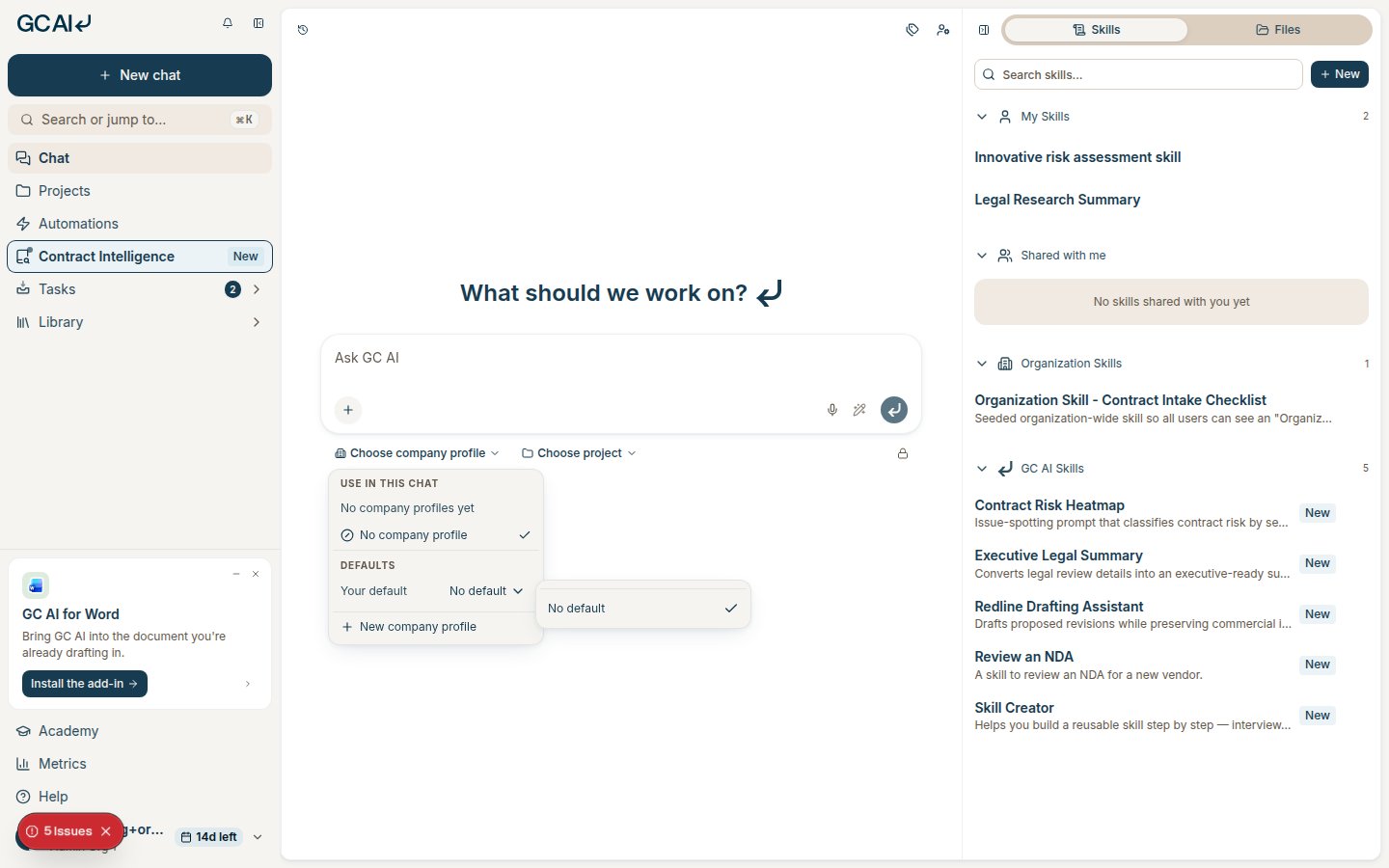 To clear the personal default, open **Your default** and select **No default**.
## Set a project default
You need **Edit** or **Admin** access to set a project default.
1. Select the project in the chat composer.
2. Open the company profile picker.
3. Under **Defaults**, open **Project default**.
4. Select a company profile.
New chats in the project use the project default instead of your personal default. You can select another profile for one chat.
To clear the project default, open **Project default** and select **No project default**.
## Keep the profile current
Update the profile after changes to the company's markets, products, legal positions, or risk tolerance.
Your company data is encrypted, secure, and private.
This documentation is built and hosted on [Mintlify](https://mintlify.com), a developer documentation platform.
To clear the personal default, open **Your default** and select **No default**.
## Set a project default
You need **Edit** or **Admin** access to set a project default.
1. Select the project in the chat composer.
2. Open the company profile picker.
3. Under **Defaults**, open **Project default**.
4. Select a company profile.
New chats in the project use the project default instead of your personal default. You can select another profile for one chat.
To clear the project default, open **Project default** and select **No project default**.
## Keep the profile current
Update the profile after changes to the company's markets, products, legal positions, or risk tolerance.
Your company data is encrypted, secure, and private.
This documentation is built and hosted on [Mintlify](https://mintlify.com), a developer documentation platform.