Draft and send emails directly from your GC AI conversations
GC AI can draft emails directly in chat. When you ask the AI to write, compose, or reply to an email, it creates a structured draft with editable fields that you can copy or open in your email client.
Ask GC AI to draft an email in natural language. For example:
“Draft an email to opposing counsel about the scheduling conflict”
“Write a follow-up email to the vendor about the missing DPA”
“Reply to this email declining the proposed terms”
GC AI generates a draft card with pre-filled fields:
To - Recipient email address(es)
CC / BCC - Optional additional recipients
Subject - Email subject line
Body - The full email text
You don’t need to provide a recipient address. GC AI drafts the email with an empty To field, and you can add recipients when you open it in your email client. Sending directly from GC AI with a connected account requires a recipient, so ask GC AI to add one to the draft first.
Send with a connected account - If you have connected Gmail or Outlook, the send menu lists each connected account under Use existing connector. Pick one and GC AI sends the email for you, formatting included, with links intact. The card then shows a Sent confirmation. GC AI never sends on its own: you decide when the email goes out.
Copy - Copies the email body to your clipboard so you can paste it into any email client
Open in Email Client - Opens a pre-filled compose window in Gmail, Outlook, or your default email app
To connect an account you haven’t linked yet, use Add new connector in the send menu and pick Gmail or Outlook. After you connect, GC AI sends the draft for you.If the email body exceeds URL length limits when opening in an email client, GC AI automatically copies the full body to your clipboard and shows a notification. Sending with a connected account has no such limit and keeps hyperlinks clickable.
When you send with a connected Gmail or Outlook account, the email can carry files from your chat.
Ask GC AI to attach a file. “Email the signed NDA to Jordan” attaches the NDA that is in the chat. GC AI attaches only the files you name, never every file in the chat, and it will not attach a file because a document told it to.
Attach a file yourself. The paperclip button on the draft card lists the files in this chat and your project, and Add from Files searches your whole library. You can also drag a file from the Files tab onto the card, or upload one from your computer.
Check before it goes out. Each attached file shows as a pill with the name the recipient will see. Click a pill to preview it, or remove it with the x. After four files the rest fold behind +N more. If the email says “attached” and nothing is attached, the card warns you.
Attachments can total 24 MB and 10 files. When the total goes over the limit, every pill shows its size and a line under the pills gives the total, so you decide what to remove. A file that was deleted from Files turns red. In both cases Send email now stays off until the draft is back within the limits.The From row at the top of the card shows the connected mailbox the email sends from. With one connected account it is filled in for you. With more than one, pick the account there before you send; the choice is saved with the draft.Send email now opens a confirmation that lists the recipients, marked Internal or External, and every attachment, with the files GC AI added first and labeled. It opens when GC AI added a file or a file changed after you last reviewed it. Until you select Do not show this again, it also opens on every send from that browser, with a reminder that the email sends right away. Click Preview on any row to read the file inside the confirmation, or the x to drop it.Copy and Open in Email Client do not carry attachments. Only a connected account sends them.


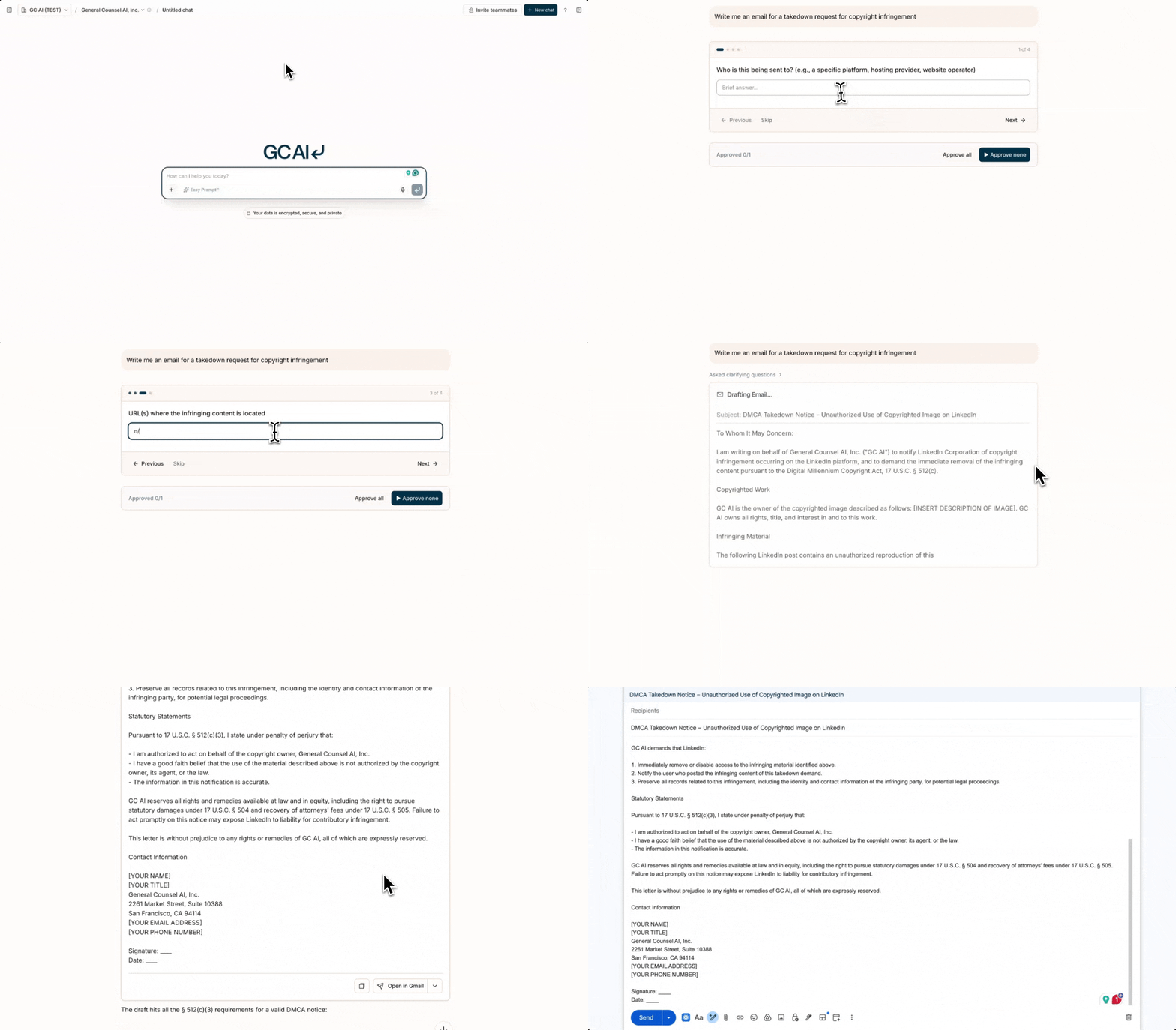 GC AI can draft emails directly in chat. When you ask the AI to write, compose, or reply to an email, it creates a structured draft with editable fields that you can copy or open in your email client.