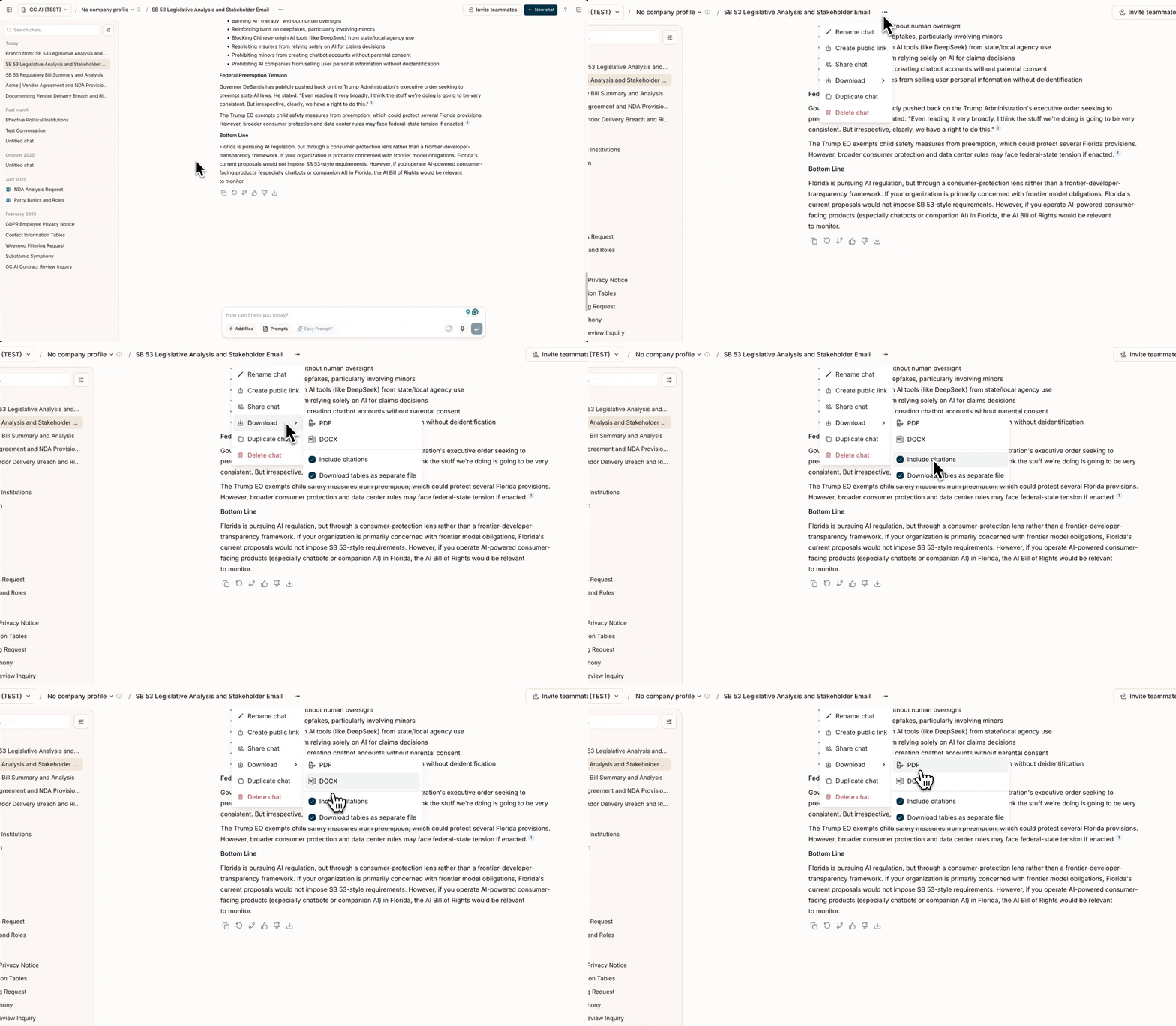
Explore the features and capabilities of the main chat interface in GC AI.
The GC AI chat interface is your primary workspace for interacting with the AI. Here, you can ask legal questions, request document drafting or analysis, get summaries, conduct research, and export your work. Understanding its features will help you work more efficiently.
At its heart, the chat interface works like most messaging applications:
Input Field: Type your requests, questions, or instructions into the text box at the bottom. When pasting text:
Content up to 6,000 characters remains as editable chat text
Content exceeding 6,000 characters is automatically converted to a downloadable text file attachment
Submit: Select the Submit button (or press Enter) to send your message to GC AI.
Conversation History: Your interactions with GC AI are displayed in a chronological thread, making it easy to follow the conversation and refer back to previous exchanges.
Ideas for you: On a new chat, GC AI suggests useful tasks based on your recent work, connected apps, and available features. Ideas can help you draft documents, review agreements, set up a playbook, organize a project, or schedule recurring work. Select a suggestion to add its prompt to your message. Attach any documents it needs, edit it if you like, then send it. Contract Intelligence ideas use your attached vault or your project’s linked vault. If neither is available, attach a vault using the + menu before you send.
Multiple AI Models: GC AI uses leading models from providers like OpenAI, Anthropic, Google, and xAI, automatically selected for your task. You do not pick a model in the product. Cross-provider fallback chains ensure reliability if any provider experiences issues.
Advanced Thinking: For complex requests, GC AI uses a structured 5-step reasoning process: scoping the question, performing a systematic sweep of relevant information, tracing patterns, accounting for completeness, and reconciling findings. You’ll see a “Thinking” indicator when this process is active.
Easy Prompt™: Optimize your questions before sending them. Easy Prompt refines your prompt for better results.
Voice Input: Speak your questions using the microphone button (up to 3 minutes per recording).
Research Agent: For questions requiring current information, GC AI launches parallel research subagents that search and analyze multiple web sources simultaneously. Visual progress cards show each research thread in real time.
Smart Document Access: When you upload documents or attach files, GC AI uses specialized tools to read, search, and query your documents on demand, rather than loading everything into context at once. This lets you work with more documents efficiently.
Web Page Analysis: Paste a URL into the chat and GC AI can access and analyze its content. This is useful for reviewing terms of service, summarizing articles, or checking web content for compliance.
You can send follow-up messages while GC AI is still responding. Messages are queued and processed in order, so you don’t need to wait for each response before asking your next question. You can pause, resume, or remove queued messages.
A visual indicator shows how much of the AI’s context window you’ve used. Hover the ring for the percentage; click for the full breakdown. The indicator changes color as you approach the limit:
Shows percentage used and total capacity
Context baseline is 200k tokens, with some models supporting up to 1M tokens
When conversations get long, GC AI can automatically summarize earlier messages to free context
When context is nearly full, GC AI can automatically fall back to a model with a larger context window
You can branch from any AI response to explore different directions while keeping your original conversation intact. This lets you test alternative approaches, compare strategies, or pursue tangential questions without losing context.
If a chat fails, returns an unexpected answer, or shows a visual bug, use Report chat in the chat header menu (⋯). You can also flag a single response with the thumbs down icon under that message. See How to Report a Chat for details, including how to send a screenshot to support.
Skill Library: Type / in the chat box to search and attach a skill. You can also open the library from the + menu to browse My Skills, Shared with Me, Organization Skills, and GC AI Skills
Company Profile: Information from your Company Profile is automatically used to provide organization-aware responses tailored to your business context
Skills: Save and reuse your frequently used workflows


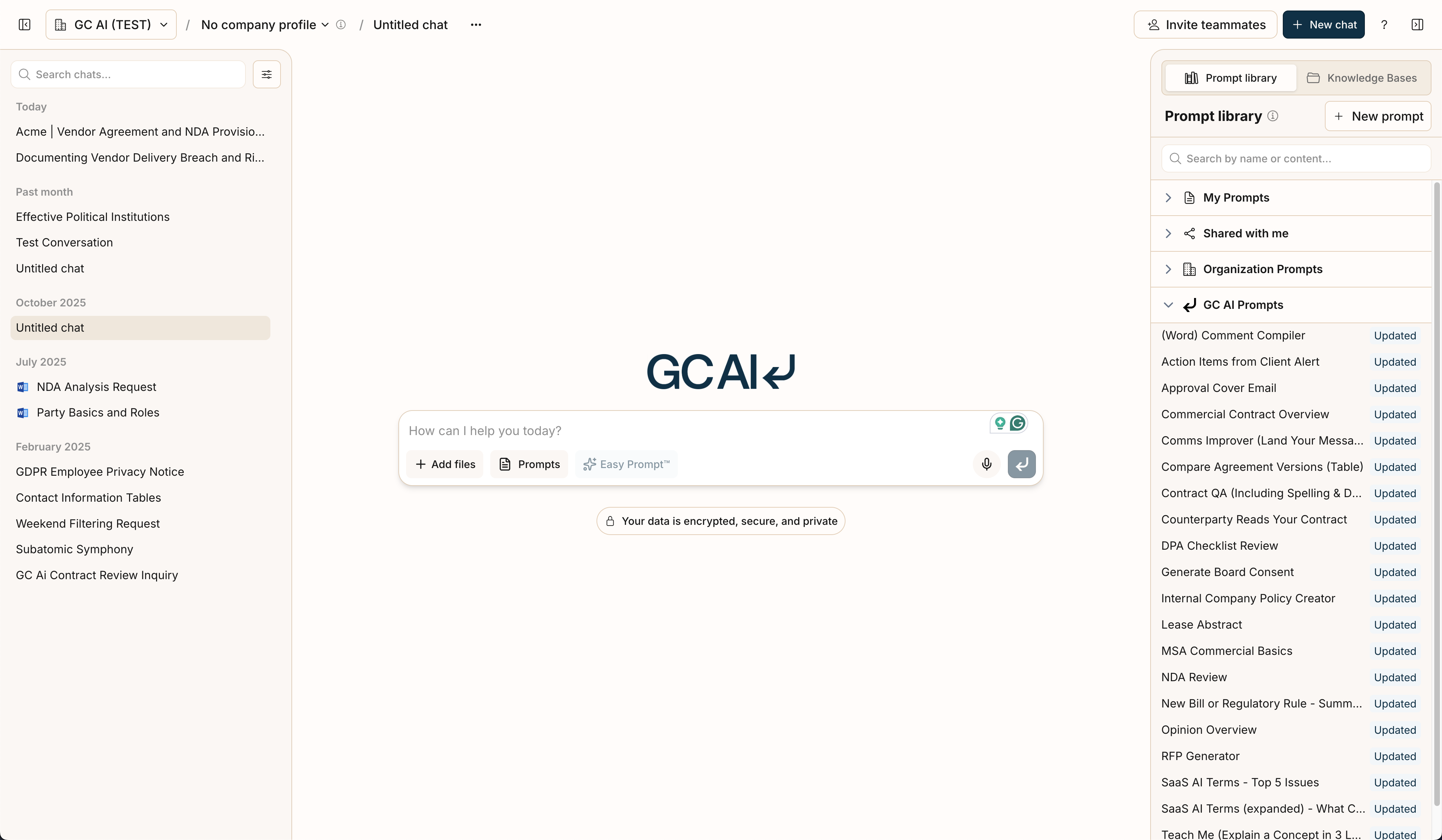 The GC AI chat interface is your primary workspace for interacting with the AI. Here, you can ask legal questions, request document drafting or analysis, get summaries, conduct research, and export your work. Understanding its features will help you work more efficiently.
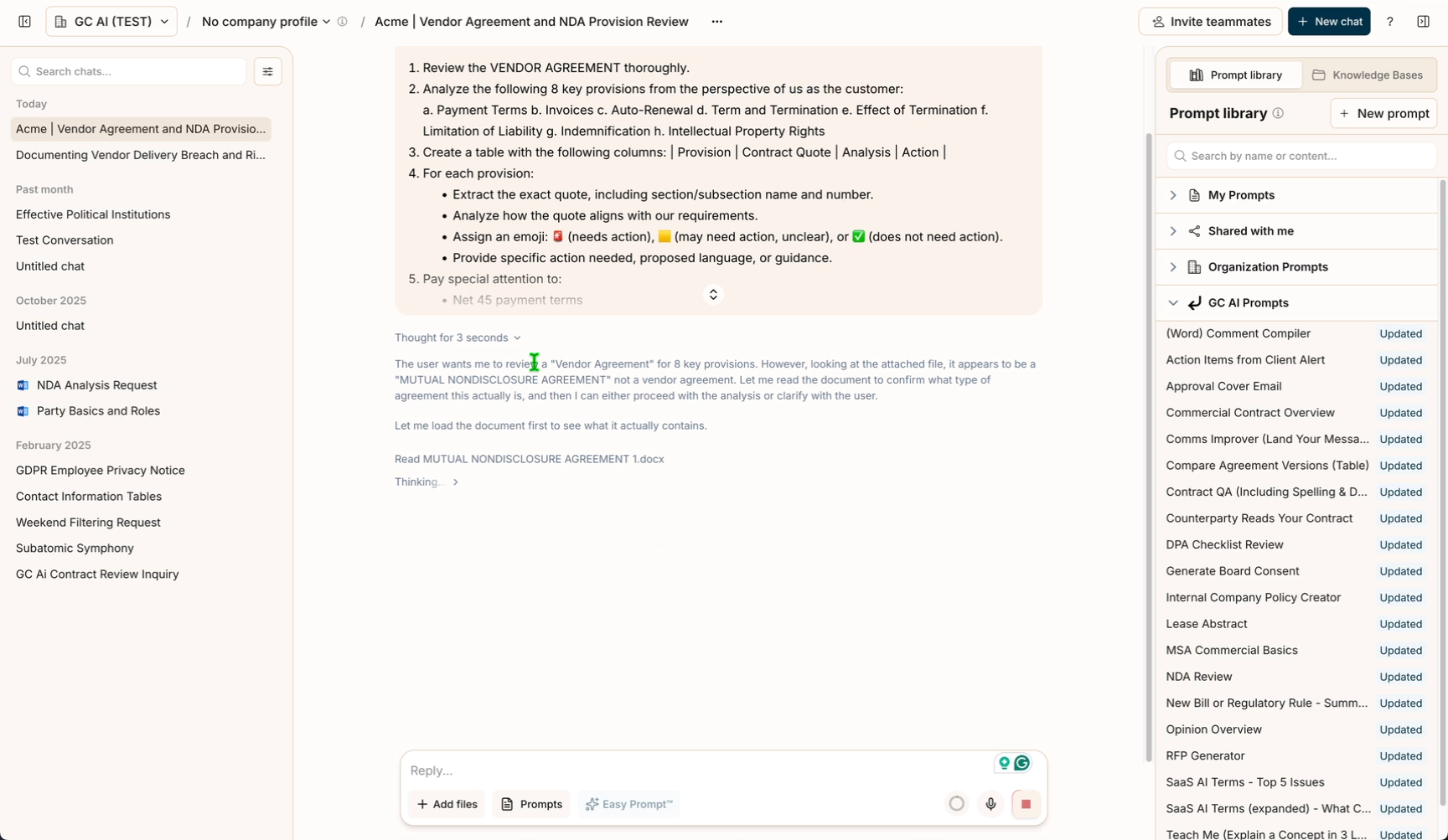
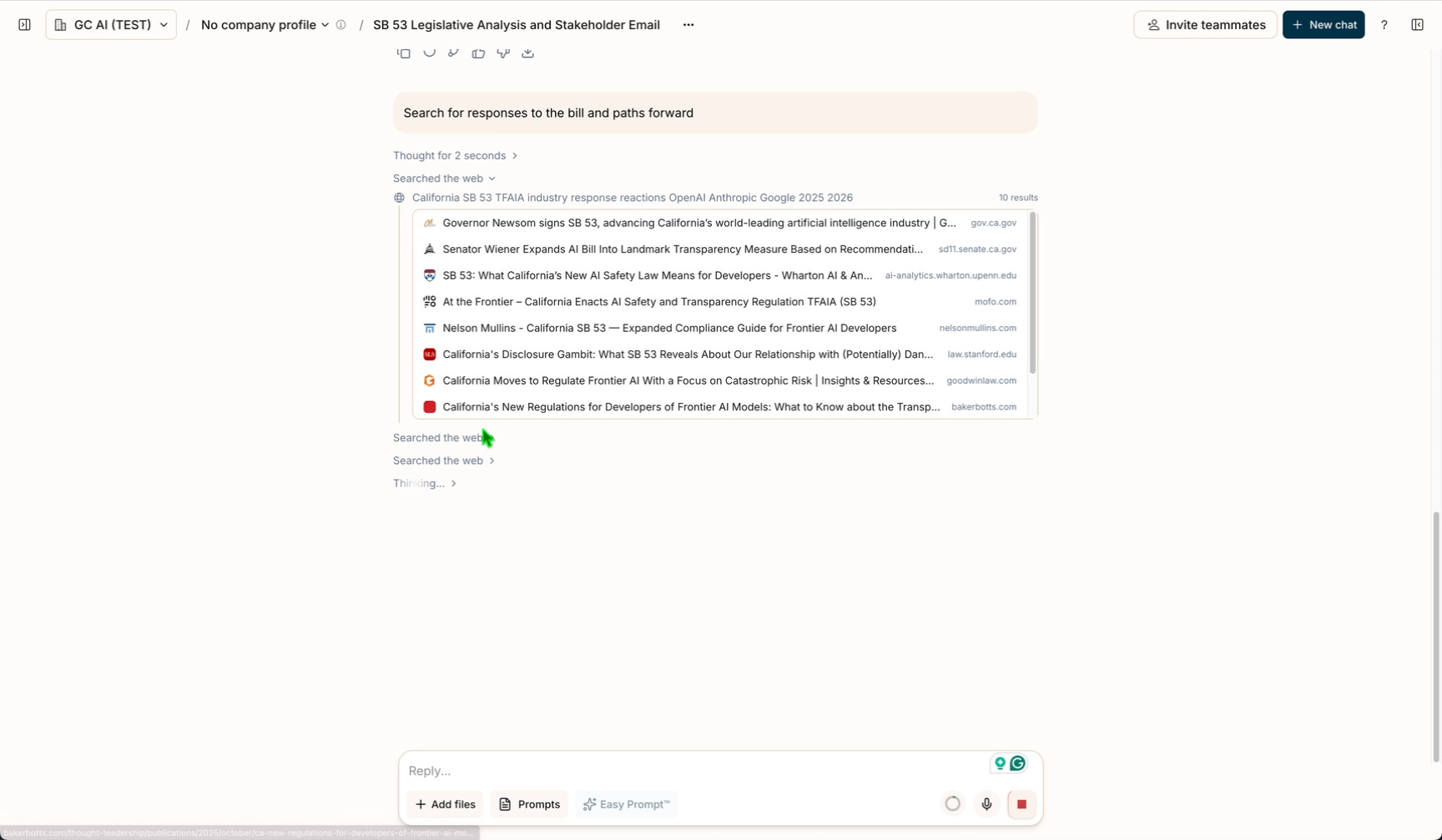
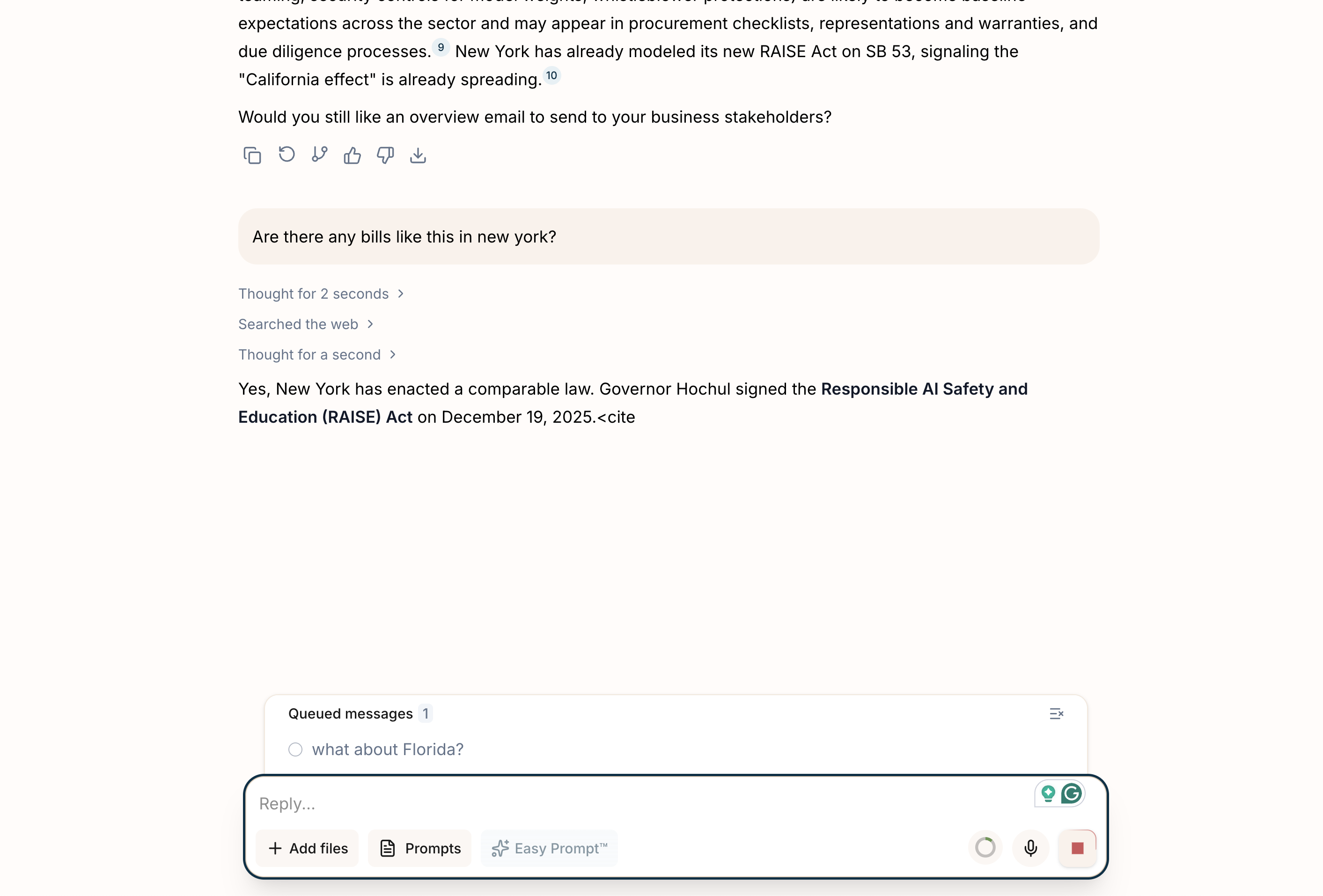 You can send follow-up messages while GC AI is still responding. Messages are queued and processed in order, so you don’t need to wait for each response before asking your next question. You can pause, resume, or remove queued messages.
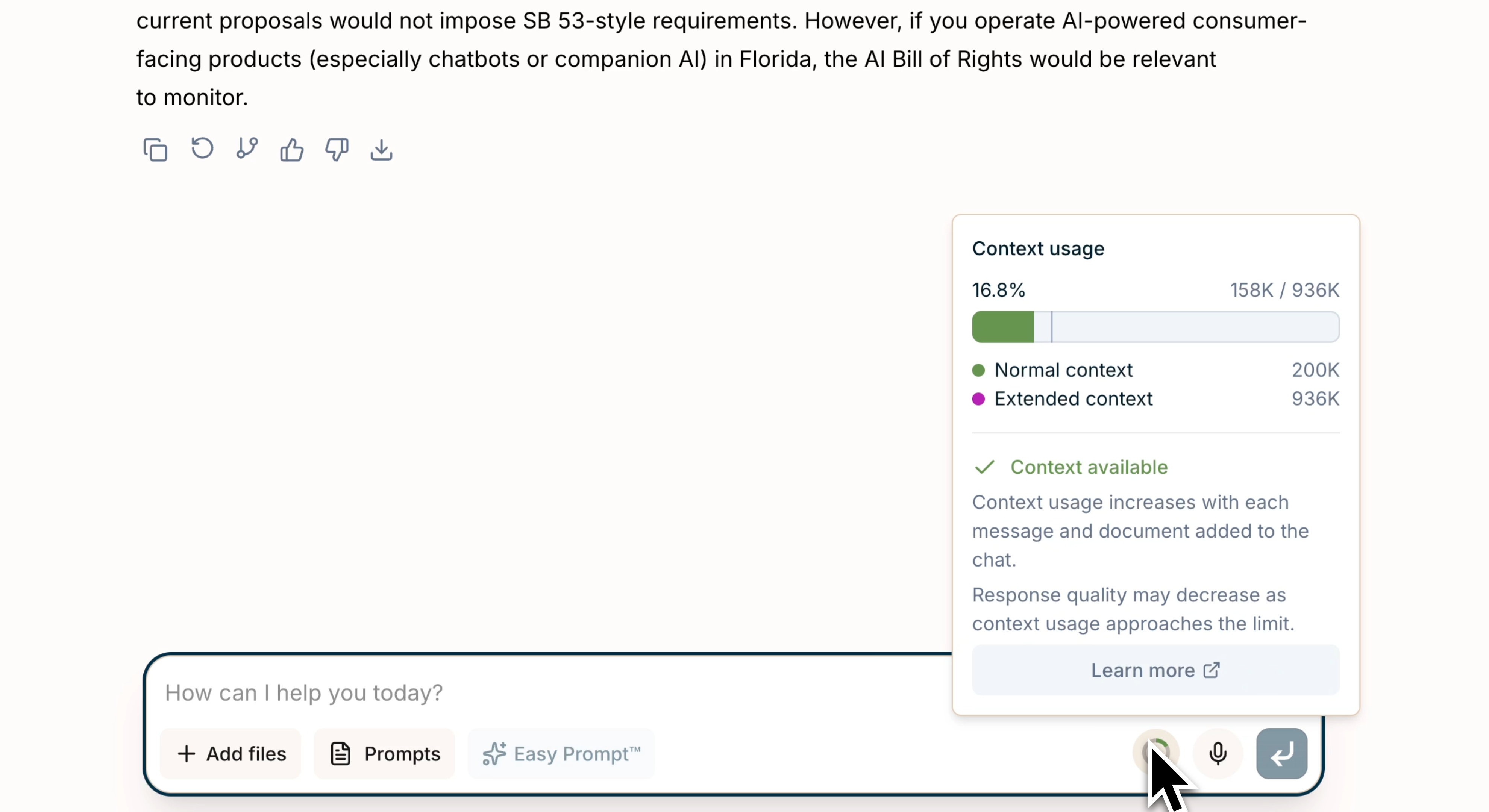 A visual indicator shows how much of the AI’s context window you’ve used. Hover the ring for the percentage; click for the full breakdown. The indicator changes color as you approach the limit:
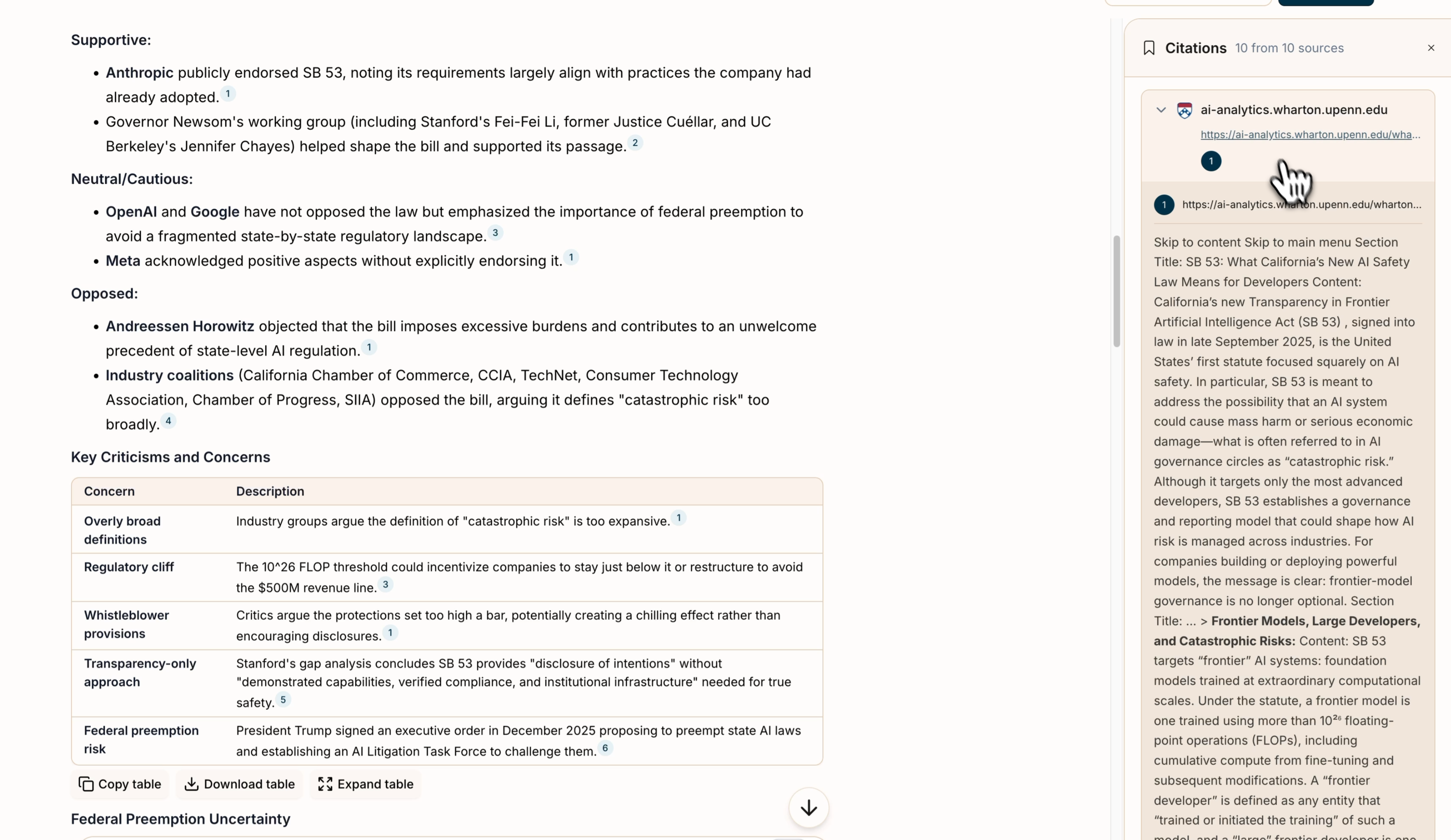 When GC AI references your documents, responses include numbered citation badges. You can:
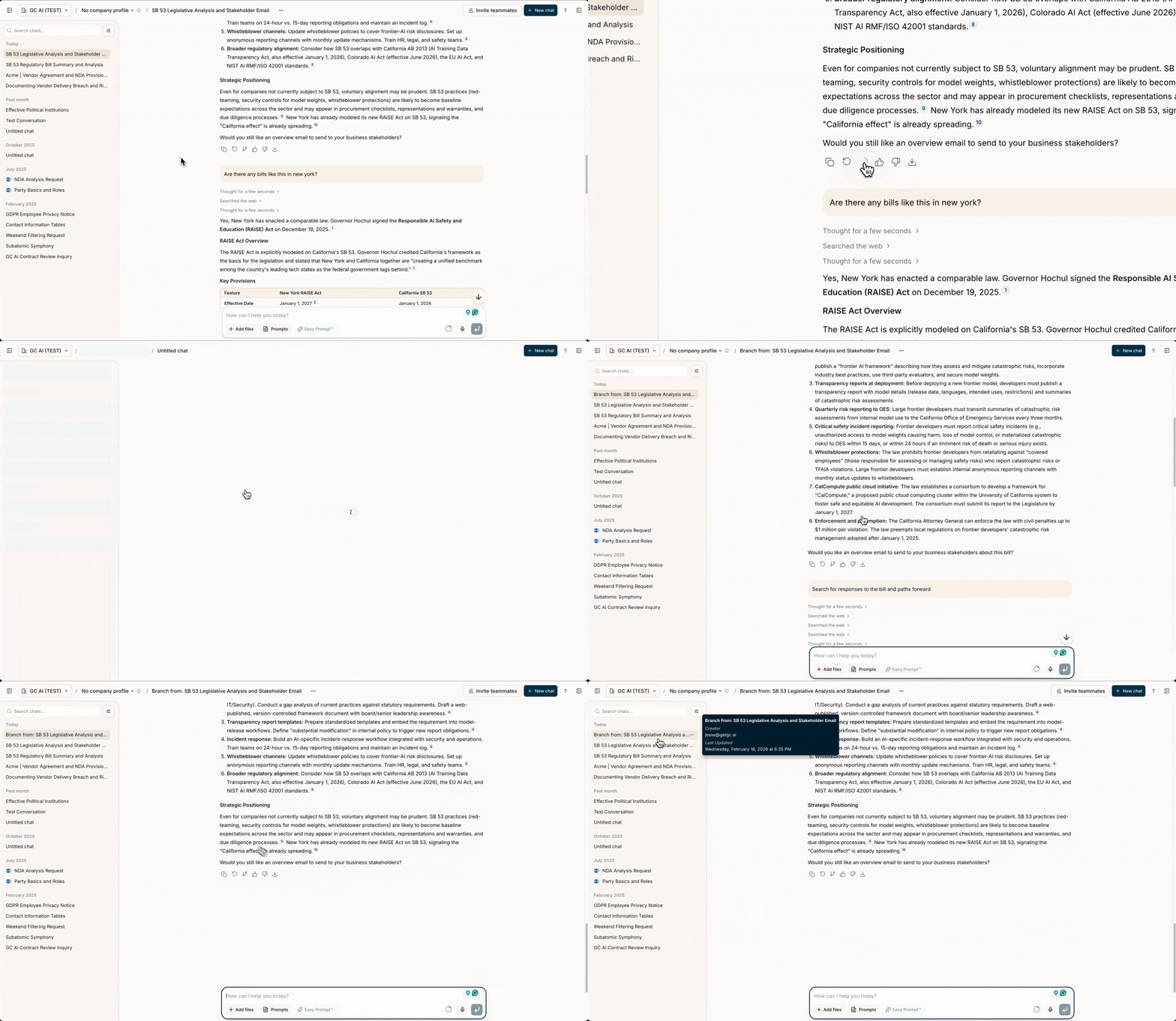 You can branch from any AI response to explore different directions while keeping your original conversation intact. This lets you test alternative approaches, compare strategies, or pursue tangential questions without losing context.